
Most teams that bill clients or run projects already record their hours. The overtime is the part that gets worked out by hand. Someone exports the timesheets at the end of the pay period, adds up each person’s extra hours in a spreadsheet, decides whether Saturday counts, forgets that one employee works a four day week, and sends payroll a number nobody can trace back to the work.
The spreadsheet eats hours every pay period and still gets things wrong. Meanwhile the overtime premium, usually an extra half of the hourly rate on every overtime hour, ends up in general labor cost, so a month later a project looks less profitable than expected and nobody can say which client deadline produced the extra hours.
Below is how to manage employee overtime in actiTIME: how the product counts it, how to set it up for each person, which overtime reports to read, how the premium shows up in your costs, and where you still need a manual step.
- How does actiTIME count overtime?
- How do I set up overtime in actiTIME?
- How do I see who works overtime?
- Worked example: one week, two overtime numbers
- How do I see what overtime costs?
- How do I match actiTIME to my overtime rule?
- How do I keep overtime under control?
- What actiTIME does not do with overtime
- Where overtime setups go wrong
- FAQ
How does actiTIME count overtime?
actiTIME measures overtime against each person’s schedule, one day at a time. It is not a legal rules engine with a 40 hour weekly threshold built in. The user guide lists the rules for automatic calculation:
- Working days. When work time plus leave time on a working day goes over the workday duration in the person’s schedule, the excess is overtime, but never more than the hours actually worked that day.
- Nonworking days. Every hour worked on a nonworking day, such as a weekend or a holiday in the Corporate Calendar, is overtime.
- Short days. A day below the schedule gives zero overtime. Overtime is never negative, so a short Thursday does not cancel a long Monday.
- Time balance. The shortfall shows up separately, in the time balance: scheduled hours compared with reported time for the period.
So actiTIME gives you two numbers for the same period. Overtime adds up every daily excess. Time balance nets long and short days against each other. Which one your payroll needs depends on the overtime rule you follow, which the worked example below makes concrete.
How do I set up overtime in actiTIME?
To set up overtime in actiTIME, turn on Overtime Registration, give everyone a schedule and an overtime mode, enter cost rates, and add approval. In detail, that is six steps. You need the “Manage System Settings” permission for the first three and “Manage Accounts & Permissions” for the per user steps. Overtime Registration is not part of the free version of actiTIME, so use the trial or a paid account.
-
Turn on the features.
Go to Settings, then Turn Features On / Off, and enable Overtime Registration. To put a price on overtime, also enable User Rates & Cost of Work Report. For sign off, enable Time-Track Approval.
-
Set the default schedule and the calendar.
In General Settings, under Timesheet and Workweek Schedule Parameters, set the default workweek schedule (hours per weekday) and the default workday duration. In the Corporate Calendar, mark holidays and nonworking days or import national holidays for your country, because hours on those days count as overtime.
-
Choose the default overtime mode and rate.
In General Settings, under Overtime Settings, pick the overtime calculation mode new users get, and set the default overtime pay rate as a coefficient of the regular rate, for example 1.5.
-
Adjust each employee.
Open a user in the Users tab. Under the workweek schedule, keep “Use corporate settings” or enter an individual schedule for part time staff (a new schedule applies from the day you edit it). Under overtime, keep the corporate mode or choose one of four: Disabled, Automatic calculation hidden from the user, Automatic calculation visible for the user, or Allow user to enter overtime manually.
-
Enter cost of work rates.
In the same panel, enter the regular rate, the overtime rate and the leave time rates. This needs the “Manage Cost & Billing Data” permission, and the overtime rate field only opens when overtime is enabled for that user. New rates apply from the date you enter them.
-
Approve and lock.
Assign approvers with the “Modify & Approve Users’ Time-Track” permission. After a period is approved, managers with the Lock Time-Track permission can lock it so the hours behind your overtime figures stop changing. If someone edits an approved timesheet, its status goes back to “Not Ready”.
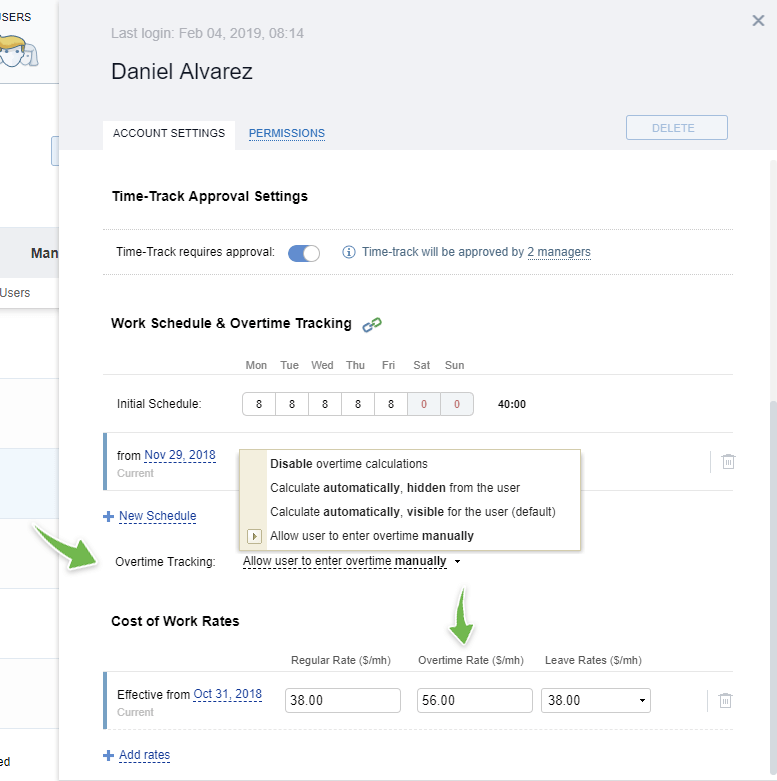
Which mode fits whom? Use Disabled for salaried staff who are not entitled to overtime, so all their hours count as regular time (our guide on who is exempt from overtime pay covers the US tests). Use Automatic calculation visible for the user for hourly staff, so people see the same number payroll sees. Hidden mode suits teams where managers want the data before they discuss it, and manual entry suits roles where overtime has to be requested or agreed case by case, ideally together with approval.
Short videos on overtime settings, tracking and analysis are collected on the overtime control use case page.
How do I see who works overtime?
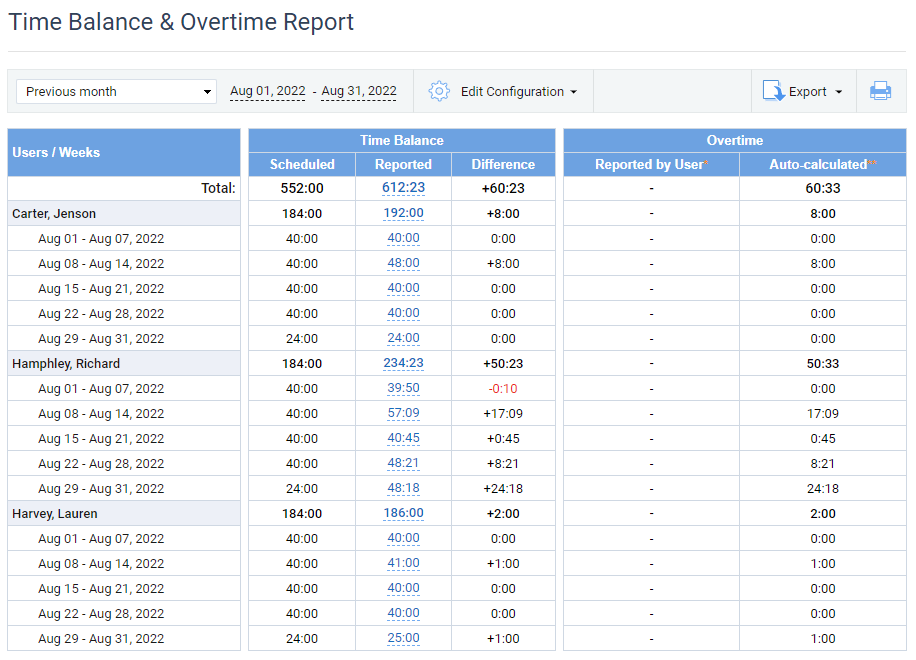
Employees with a visible mode see their overtime in the Timesheet View and the Calendar View of the Enter Time-Track interface, for the week and for each day. Managers get the full picture in the Time Balance & Overtime Report, the main overtime report in actiTIME:
- pick any date range, preset or custom;
- group by users, user groups or time periods, up to two levels;
- show time balance, overtime or both, with work and leave time in separate columns if you want;
- run it for all staff, departments, time zone groups or selected people;
- export it as HTML, CSV or PDF.
Managers see their own team, and regular users see only their own data. For overtime analysis over longer periods, group the report by user and by month. When one person’s overtime grows month after month, look at their workload and the estimates on their tasks before you look at their timesheet. Charts on the Reports Dashboard can also show overtime hours by user or department.

We can generate any report we need
One of the greatest features actiTIME offers is the customizable reporting. We can generate virtually any report we need, grouped in different ways and only for the people assigned to each project. And if the report is not there, well, it’s really easy to create a new one and save it for future use. Go for actiTIME! It’s simple, but also very powerful! You won’t regret the decision. The software + support combination makes actiTIME the best tracking solution in the market.
Worked example: one week, two overtime numbers
Here is how the daily count plays out for one person. The figures are illustrative. A designer works a Monday to Friday schedule of 8 hours a day, with a regular cost rate of $30 an hour and an overtime rate of $45 (coefficient 1.5). During a launch week for one client, she logs 10, 9.5, 8, 7 and 8 hours from Monday to Friday, plus 3 hours on Saturday.
The two numbers differ by one hour because the short Thursday does not reduce overtime in actiTIME’s count, while a weekly rule nets it. Under a daily rule like California’s, the 6.5 hours is closer to what you owe. Under a purely weekly rule, the time balance of 5.5 hours is the figure to check. Each overtime hour adds $15 at these rates, and moving the coefficient from 1.5 to 2.0 doubles the premium to $195 for the week. For a team of 10 with the same pattern over 26 weeks, the premium is $25,350, and paying from the daily count where only a weekly rule applies would overstate it by $3,900. To check a single paycheck by hand, the overtime calculator does the arithmetic.
How do I see what overtime costs?
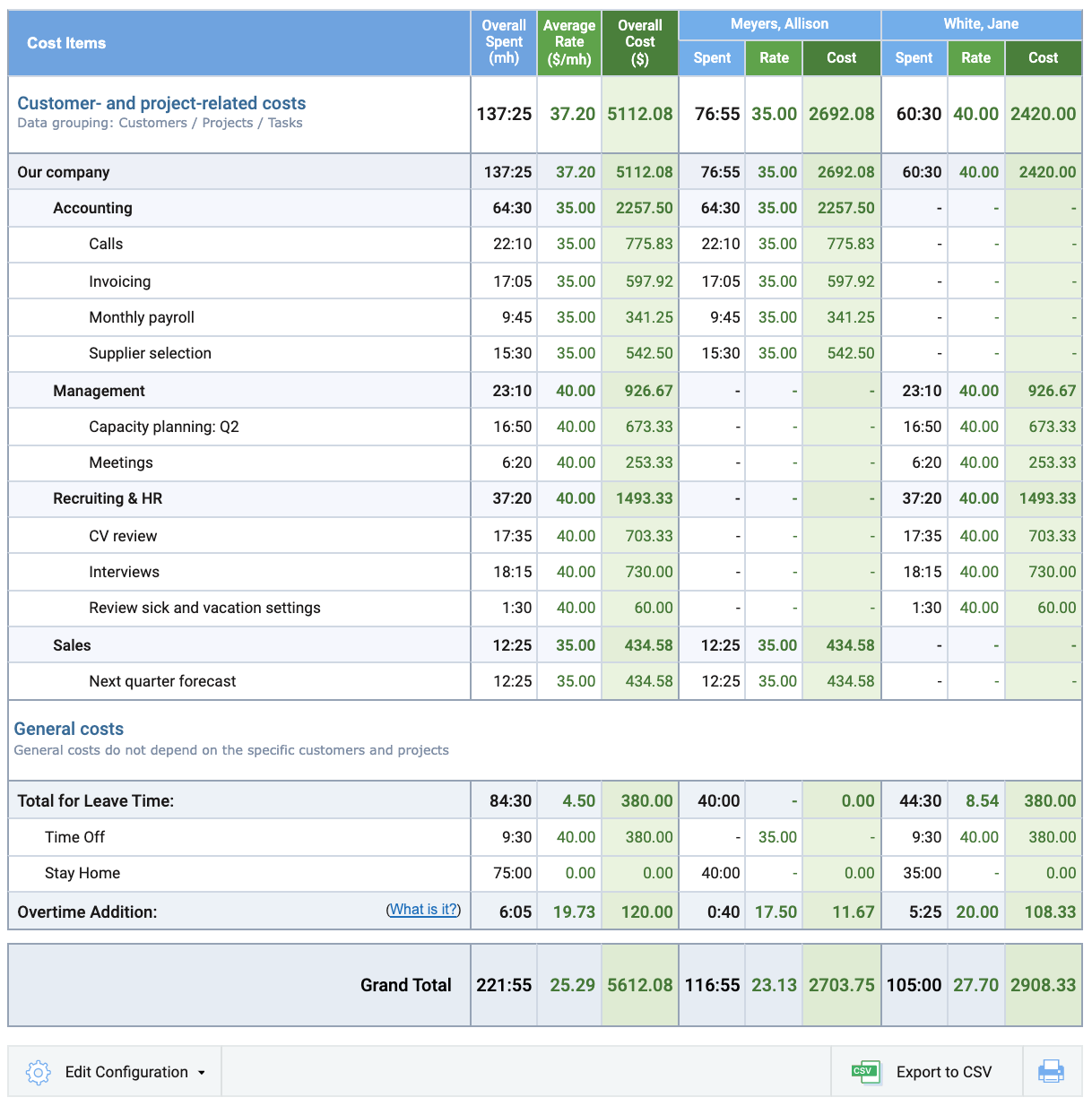
Overtime cost shows up in two reports, the Cost of Work Report and the Profit/Loss Report, and both split it the same way. Every hour worked, overtime hours included, is costed at the person’s regular rate under its customer, project and task. On top of that, the General costs section adds the Overtime Addition, which is overtime hours multiplied by the difference between the overtime rate and the regular rate. Leave time costs sit in the same section.
Watch the filters here. The Overtime Addition does not depend on the customers or projects you filter by. It covers the selected people and dates, whatever they worked on. In the worked example, the $97.50 premium shows up as one general line, not against the client whose launch caused it. To charge the premium to a project, run the Time-Track Report for the overtime days, filtered by project, and assign the premium by hand. If most of your overtime clusters around one or two clients, a monthly pass like this is enough to show what their deadlines really cost.
Billing works separately. Billable amounts come from the rates on types of work, or from user billing rates if a project bills by user rates, and an overtime hour bills at the same rate as any other hour. If your contract lets you charge clients more for overtime, that needs a separate type of work or an agreed adjustment on the invoice.
How do I match actiTIME to my overtime rule?
The law decides which hours are overtime, and it differs by country and state. Map each group of employees to its rule before you choose their mode and schedule. The calculation behind overtime pay, including regular rate adjustments, is covered in our overtime calculation guide, and US recordkeeping duties are in the overtime tracking guide.
| Rule | What it requires | How to handle it in actiTIME |
|---|---|---|
| United States, federal (FLSA) | At least 1.5 times the regular rate for hours over 40 in a workweek; no daily threshold and no automatic weekend premium | Read the weekly time balance as well as the overtime figure, and check days that mix leave and work |
| California | 1.5 times after 8 hours a day and 40 a week, double time after 12 hours a day, special seventh day rules | An 8 hour schedule matches the daily count; hours over 12 need a manual double time adjustment because each user has one overtime rate |
| European Union | Average of 48 hours a week, overtime included, over a reference period of up to 4 months; pay rates set nationally | Run the Time-Track Report or Time Balance & Overtime Report for the reference period and divide by the number of weeks |
| United Kingdom | 48 hour average, normally over 17 weeks, with a written opt out allowed | Same report over 17 weeks; keep the record of who opted out in your HR files |
| Exempt or salaried staff | No overtime pay where the exemption applies | Set the overtime mode to Disabled |
Sources: DOL Fact Sheet 23 and 29 CFR 778.102 for the US, the California Labor Commissioner, the EU Working Time Directive and GOV.UK on maximum weekly working hours. For California detail, see our California overtime laws guide.
One more point for US teams. actiTIME counts leave time toward the workday, so 7 hours of work plus 2 hours of sick leave on an 8 hour day gives 1 hour of overtime. Under the FLSA, pay for vacation, holiday or sick time is not pay for hours worked and is not credited toward overtime (29 CFR 778.218), so check those days before payroll.
How do I keep overtime under control?
For overtime control, actiTIME gives you early signals rather than a hard stop. It has no notification for overtime itself, but three of its six email notifications in Settings, then Notifications, work as early signals:
- Notification of worked-out task estimate alerts users when time on a task reaches a set percentage of its estimate. Tasks that overrun their estimates are where late evenings start.
- Notification of overrun project budget tells managers when a project’s cost, based on pay rates, exceeds its budget.
- Notification of personal earnings sends managers a list of employees whose cost of work reaches a value you set. Set it a little above a normal week’s cost and it flags people heading into overtime.
Beyond alerts, review the Time Balance & Overtime Report weekly rather than at payroll time, and compare estimated with actual time on the projects that produce most of the overtime. If you bank overtime as time off, actiTIME has no automatic conversion: a manager with the “Manage PTO & Sick Days Settings” permission uses Increase balance in the user’s PTO settings for the agreed hours. Our article on banked hours vs overtime pay covers when banking is allowed. For the wider question of how to manage overtime through staffing and scheduling, read our guide on how to reduce overtime.
General Settings also has a Maximum reported time per day limit. It is useful for catching typing errors such as 80 hours instead of 8. Using it to cap overtime backfires: people still work the hours, many jurisdictions still require you to pay them, and you lose the record.
What actiTIME does not do with overtime
- No alert before overtime starts. The user guide documents no overtime notification; the workarounds are above.
- No weekly threshold setting. Overtime is counted per day against the schedule; for a weekly rule, read the time balance.
- One overtime rate per user. Double time and other tiers need a manual adjustment in payroll.
- Overtime premium is not split by project. The Overtime Addition is a general cost line; per project attribution is a manual step.
- No payroll run. actiTIME calculates hours and cost of work; payroll gets the data as a CSV export and applies taxes and final rules.
- Not in the free version. Overtime Registration needs a paid account or the trial.
If you need shift scheduling, punch clocks or alerts before overtime for hourly crews, a time and attendance tool fits better. For employee overtime management, actiTIME fits teams whose hours go into projects, budgets and client billing, where the useful question about overtime is what a deadline cost and who carried it.
Where overtime setups go wrong
- Exempt staff left on automatic. Salaried people then show overtime balances that payroll will query. Set them to Disabled.
- Part time schedules never entered. Someone on a 6 hour day under the 8 hour corporate default shows no overtime until they pass 8 hours.
- Holidays missing from the Corporate Calendar. Hours on an unmarked holiday count as a normal day.
- The daily figure paid where only a weekly rule applies. As the example shows, the overtime total can run above what the law requires. Decide which number payroll uses and write it down.
- Edits after payroll. Without Lock Time-Track, last month’s hours can change after the pay run. Lock each approved period.
- Manual mode without approval. When people enter their own overtime and nobody signs it off, disagreements surface at payroll, long after anyone remembers the week.


FAQ
Can actiTIME replace a payroll provider or a PEO?
No. actiTIME tracks time, calculates overtime against each schedule and turns hours into cost of work, but it does not pay wages, withhold taxes or act as an employer of record. Teams use it alongside their payroll provider or PEO and pass on hours and overtime as a CSV export from the reports.
Can employees see their own overtime?
Yes, if their mode is Automatic calculation visible for the user or manual entry. They see overtime in the timesheet and calendar, and can run the Time Balance & Overtime Report for their own data. With the hidden mode, overtime appears only in managers’ reports.
Is overtime tracking included in the free version?
No. Overtime Registration is one of the features the free version for up to 3 users does not include. The 30 day trial has every feature, so you can set up overtime and run the reports on real timesheets before you buy. Paid accounts start from $5 per user per month.
To manage employee overtime next to project hours, budgets and billing, start a free trial of actiTIME with full features for 30 days. After the trial, teams of up to 3 users can keep using the free version, and the pricing page lists the paid options.