



Effective budget tracking is the foundation of project financial control. Without it, cost overruns accumulate quietly until they become impossible to reverse. With the right template, you can track planned versus actual spending at the task level, catch variances early, and keep stakeholders informed at every phase.
We’ve built two free project budget tracking templates — a cost budget template and a billing budget template — that cover the most common tracking needs for project managers, small business owners, and freelancers. Download them below, and read on for a complete guide to creating and managing a project budget from scratch.
What Is a Project Budget Template?
A project budget template is a pre-built spreadsheet for planning, tracking, and reporting project costs. It gives teams a consistent structure for recording cost estimates, logging actual expenditures, and comparing planned versus actual spending — without building the format from scratch for every project.
Most projects have two financial sides that need separate tracking:
- Cost side — what the project costs to deliver: labor, materials, equipment, overhead, vendor fees
- Revenue/billing side — what the project earns or charges the client: billable hours, fixed-fee milestones, delivered services
Our templates include one for each. Most projects need both.
Key Components of a Project Budget
A complete project budget covers five cost categories. Missing any of them is one of the most reliable predictors of budget overruns — not because costs came in higher than expected, but because they were never planned for at all.
- Labor costs — the largest cost driver in most projects. Calculated as hours worked multiplied by hourly rate for each team member or role. Include employees, contractors, and specialized consultants separately.
- Material and equipment costs — physical inputs the project requires: raw materials, purchased components, hardware, software licenses, and equipment rental or amortized depreciation.
- Fixed costs — costs that don’t vary with hours worked: permits, insurance, facility rental, setup fees, or fixed-price subcontracts.
- Vendor and contractor costs — third-party services billed independently from your team’s labor. Track these as their own line items so they don’t get absorbed into labor or overhead totals.
- Contingency reserve — a planned buffer for unexpected costs. Most project management standards recommend 5–15% of the total estimated budget. Excluding contingency isn’t optimism; it’s one of the most consistent causes of budget overruns on otherwise well-planned projects.
When to Use a Project Budget Template
- Project planning. Before work begins, list all tasks and estimate costs for each one. This initial estimate becomes your baseline — the reference point everything else is measured against for the life of the project.
- Ongoing progress tracking. During the project, record actual expenditures and compare them to baseline estimates. Catching a 10% variance at week three is manageable. Catching the same variance at week ten is a much harder problem to solve.
- Financial reporting. At the end of a project phase or at project close, present the filled template to stakeholders to show how resources were used and whether delivery stayed within budget.
- Post-project evaluation. Use the collected data to assess financial performance: which tasks ran over, where estimates were most accurate, and what to adjust in the next project plan.


Our Project Budget Templates: Main Components
Both templates are built in Excel and organized by project task and time period. Standard formulas handle the calculations: multiplication for hourly cost and revenue figures, SUM functions for subtotals and totals. You fill in the inputs; the template does the math.
Cost Budget Template
The cost budget tracking template is designed to keep all relevant project expenses in one place across three cost categories:
- Staff-related performance costs
- Material costs
- Fixed costs
It breaks the project down by tasks and months, with columns for:
- Working hours and pay rates per task
- Cost estimates per task
- Materials purchased for each task
- Other task-level costs
The multiply function (*) calculates performance costs from hours and rates automatically. SUM functions handle all subtotals and totals — no manual arithmetic required.
Billing Budget Template
The billing budget tracking template tracks billable amounts to keep client-facing revenue in line with the project budget.
It uses a similar structure to the cost template but focuses on the revenue side:
- Separate sections for different project periods
- Task list with dedicated columns for tracking hourly revenues: working hours, billing rate, and total billable amount per task
- A column for fixed fees per task
- Monthly subtotal rows and a total project revenue row
All subtotals and totals calculate automatically.
How to Create a Project Budget
A budget template is only as useful as the data you put into it. Before filling in numbers, you need a structured approach to estimating costs. Here is a process that works across most project types:
- Define the project scope. List every deliverable the project will produce and establish what is explicitly out of scope. If scope is unclear at this stage, cost estimates will be equally unclear — budget overruns almost always trace back to incomplete scope definition at the start.
- Break work into tasks using a Work Breakdown Structure (WBS). Decompose each deliverable into discrete, estimable tasks. Each task becomes a line item in the budget template. The more granular the breakdown, the more accurate the estimates — and the easier it is to identify which tasks drove a budget overrun after the fact.
- Estimate costs per task. For each task, calculate labor cost (hours × hourly rate), materials, fixed costs, and any vendor fees. Use historical data from similar past projects where available — it produces more accurate estimates than top-down approximation.
- Add a contingency reserve. Once task-level estimates are totaled, add 5–15% as a contingency buffer. Record it as an explicit line item, not as padding within individual task estimates. A visible contingency reserve builds stakeholder trust — it signals that the budget was built by someone who has managed projects before.
- Get stakeholder approval. Present the baseline budget and get formal sign-off before work starts. This approved baseline becomes the reference point for all future variance tracking.
- Log actuals regularly. Update the template at set intervals — weekly for active projects, at milestone completions for longer timelines. Enter actuals into the template as work is completed; the variance columns update automatically.
- Reforecast when scope changes. When scope expands or contracts, revise the relevant task estimates and adjust contingency accordingly. A budget that never changes despite scope change isn’t being maintained — it’s being ignored, and the overrun at project close will reflect that.
Formula tip: When adding new task rows, apply the multiply formula manually to each new row (e.g., =D10*E10) and update the SUM range in affected subtotal and total formulas (e.g., =SUM(E5:E25)). New rows outside the existing formula range won’t be included in calculations automatically.
How to Track Budget Variance
Budget variance is the difference between what you planned to spend and what you actually spent:
Variance = Actual Cost − Estimated Cost
A positive variance means you spent more than planned. A negative variance means you spent less. Tracking variance at the task level — not just the project total — shows you exactly where the budget is eroding and gives you time to respond before overruns compound into something that can’t be corrected.
Four practices that make variance tracking reliable:
- Update on a fixed schedule. Weekly updates are standard for active projects. Waiting until the end of a phase to reconcile actuals against estimates eliminates the ability to course-correct in time.
- Track at multiple levels. Task-level variance shows which specific items ran over. Phase-level and project-level variance shows whether individual overruns are being absorbed by savings elsewhere or accumulating across the board.
- Investigate before acting. A task running 30% over estimate could mean the estimate was wrong, the scope changed, or work was done inefficiently. The right response is different in each case — and only investigating the cause tells you which it is.
- Separate budget variance from schedule variance. A task can be on schedule but over budget, or under budget but behind schedule. Seeing both dimensions prevents misreading the project’s financial health from a single metric.
Use Cases: Who Benefits from Budget Tracking Templates?
Project Managers
If you run projects with defined client budgets, use the templates to maintain full financial visibility from kickoff to close:
- Break down the total client budget by task and assign a cost estimate to each
- Record actual hours per task and calculate costs using the pay rate columns
- Track billable revenues separately in the billing template — by hour or by deliverable
- Compare actuals to estimates at each project milestone
- Present the completed template to clients at phase end to show cost breakdown and justify billing
Small Business Owners
If you manage multiple projects across teams or departments, the cost template works as a consolidated tracking tool across all of them.
For tracking staff-related costs by department or team:
- Customize the template: use each section for a department or team rather than a project phase
- List employee names within each section instead of tasks
- Record planned compensation in the Estimate column for the reporting period
- Log hours worked and hourly rates to calculate actual staff costs automatically
- Use additional columns for variable wage costs — overtime pay, bonuses, allowances
- At period end, compare actual costs to budget to assess cost efficiency across departments
Freelancers and Agencies
Use the templates to separate billable from non-billable work and track the true profitability of your projects:
- List all project tasks in the billing template and set billing rates only for billable items
- Track time on both billable and non-billable tasks; apply revenue calculations only to the billable ones
- At the end of each billing period, compare time in billable tasks to non-billable — the larger the share of billable work, the more revenue-efficient the project
- Use the cost template in parallel to record actual expenses per task; the closer total costs approach total revenues, the more urgent a review of pay rates or pricing becomes
Better Budget Tracking with actiTIME
Our project budget tracking templates give you a structured starting point at no cost. For teams that need real-time tracking, automated calculations, and visibility across multiple projects simultaneously, actiTIME handles what spreadsheets cannot.
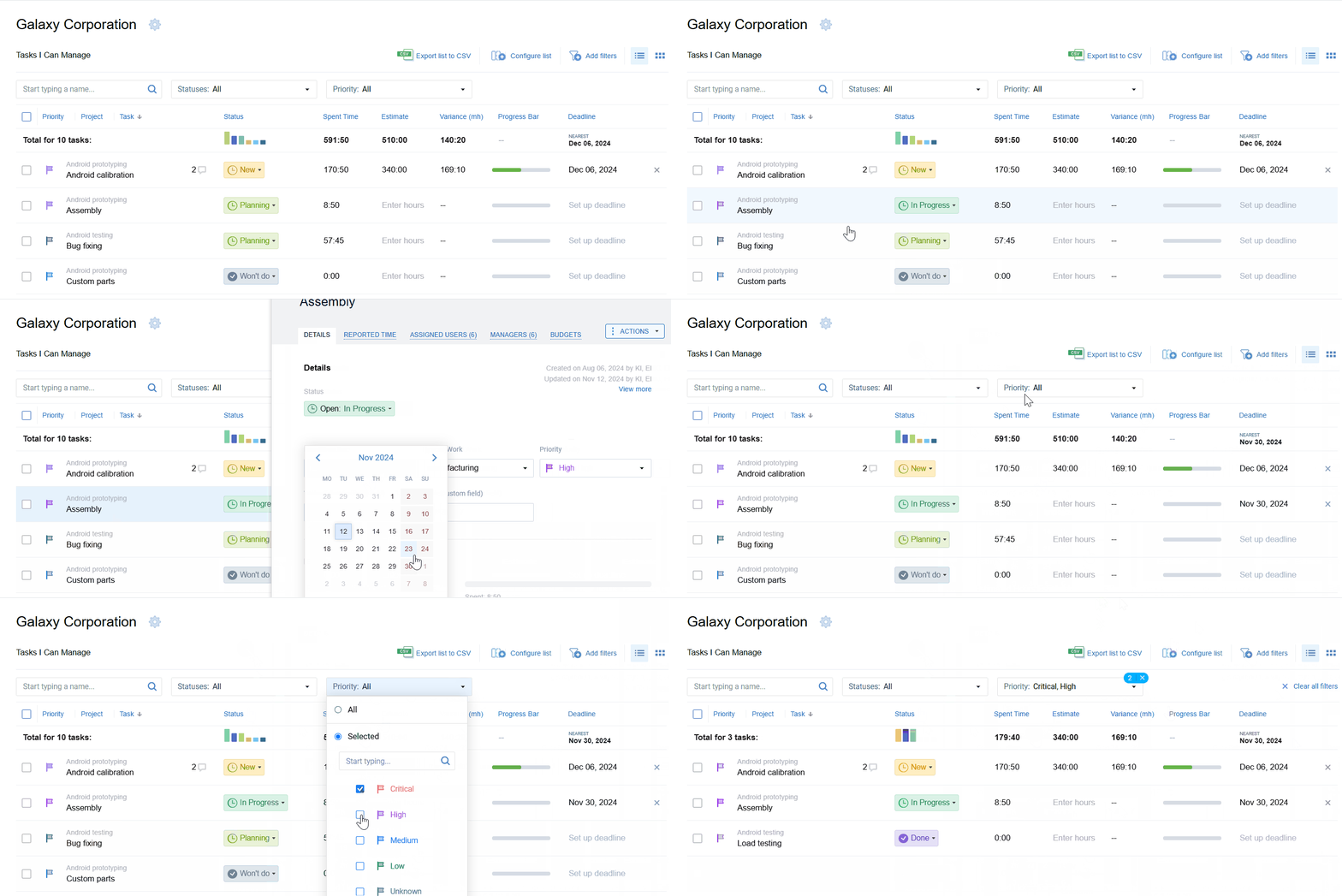
For budget tracking specifically, actiTIME supports three budget types that can be applied at any level of the project hierarchy:
- Cost budget
- Billing budget
- Time budget
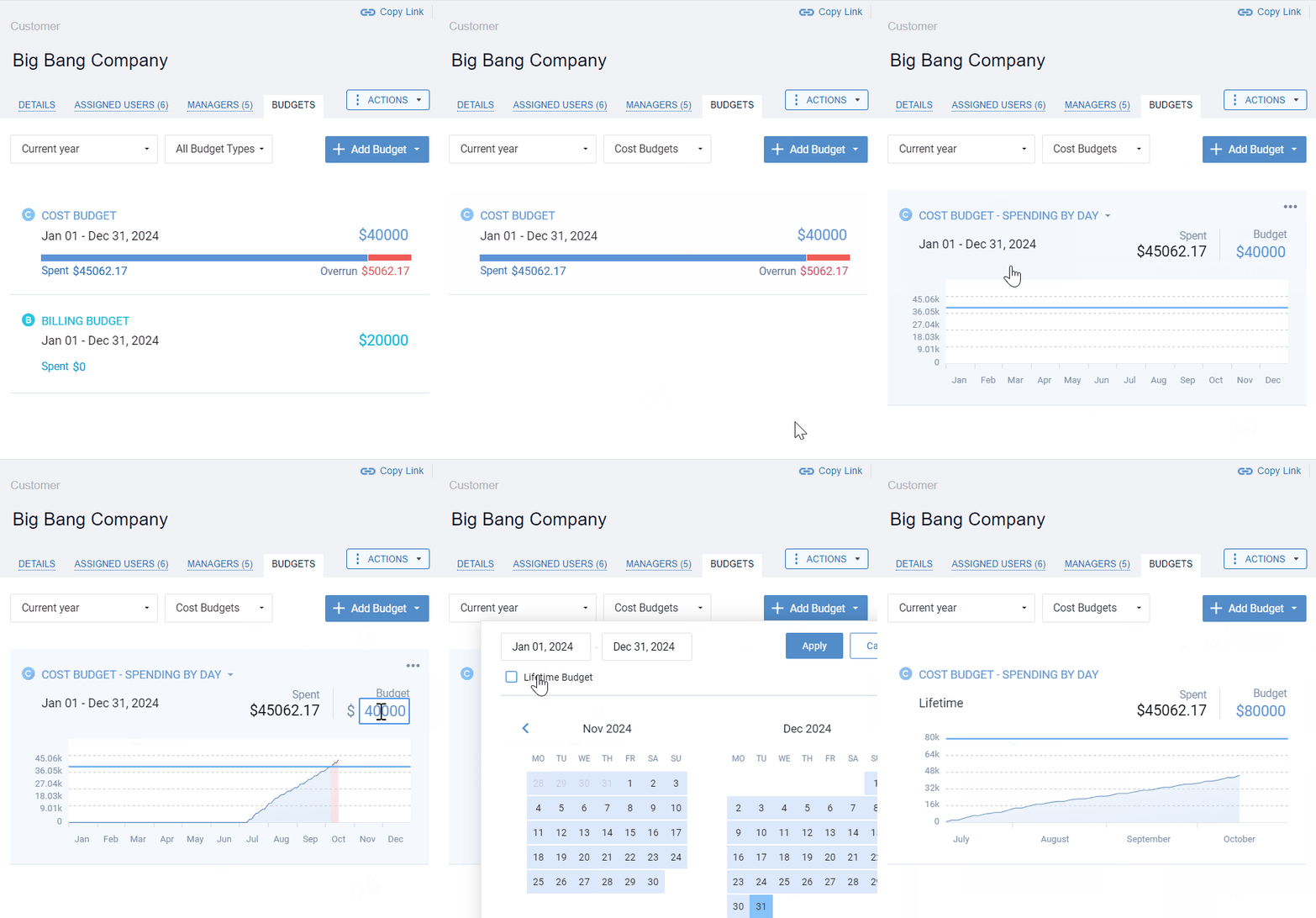
Each can be allocated at three levels: the entire client relationship, an individual project, or a specific task. This lets you track at a high level for stakeholder reporting and at the task level for cost control — without maintaining separate documents for each view.
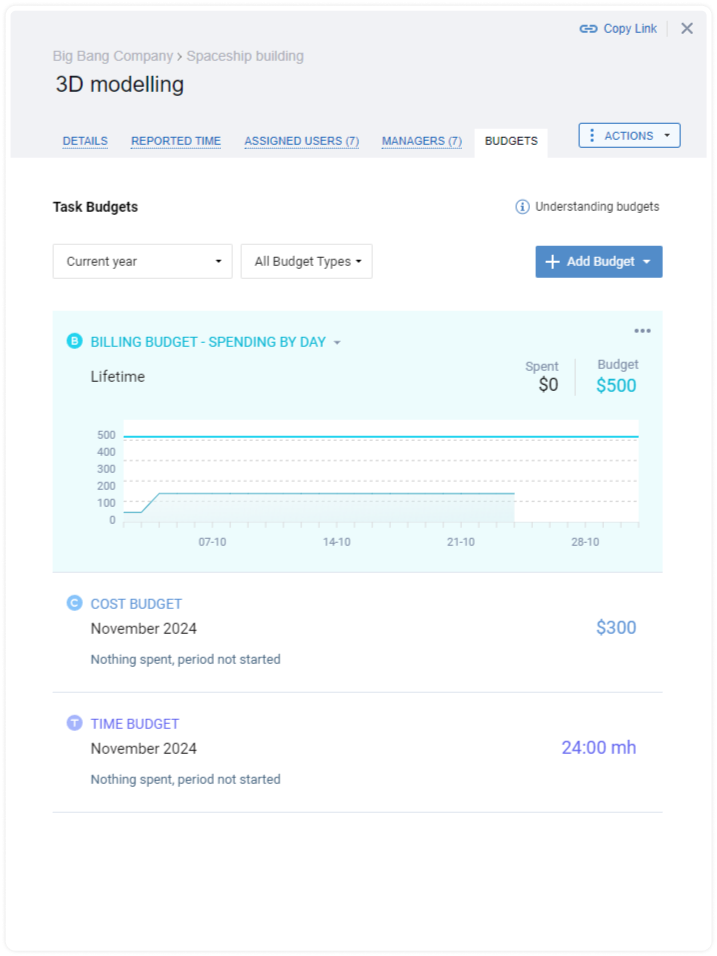
Every budget you create gets a visual progress bar showing current consumption against the allocated total. Budget risks become visible before they reach the overrun threshold — not after.
Beyond budget tracking, actiTIME includes weekly timesheets, time off management, a Kanban board for task tracking, and detailed performance reports — giving you a complete view of how time and money are being used across every project at once.
Sign up for a free actiTIME trial to see how it handles the budget tracking scenarios a spreadsheet template cannot.